
Chrome Extension
Setup Guide
Add YouTube videos and channels to IDWIW without leaving the page. Here’s how to set it up—it takes about a minute.
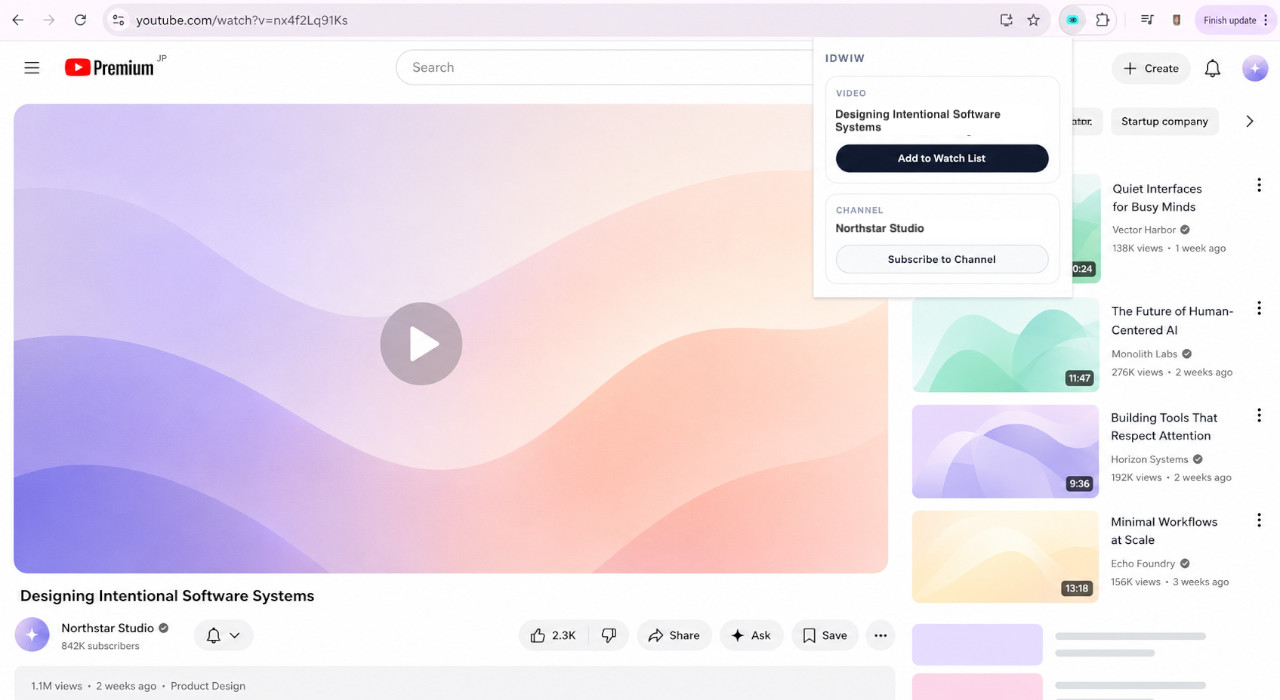
Overview
The IDWIW Chrome extension connects YouTube to your IDWIW account. While you’re on any YouTube page, you can add the video to your Watch List or subscribe a channel to your feed in one click—no copy-pasting links, no switching tabs. Setup is a one-time process: install the extension, then connect it to your account with an API key.
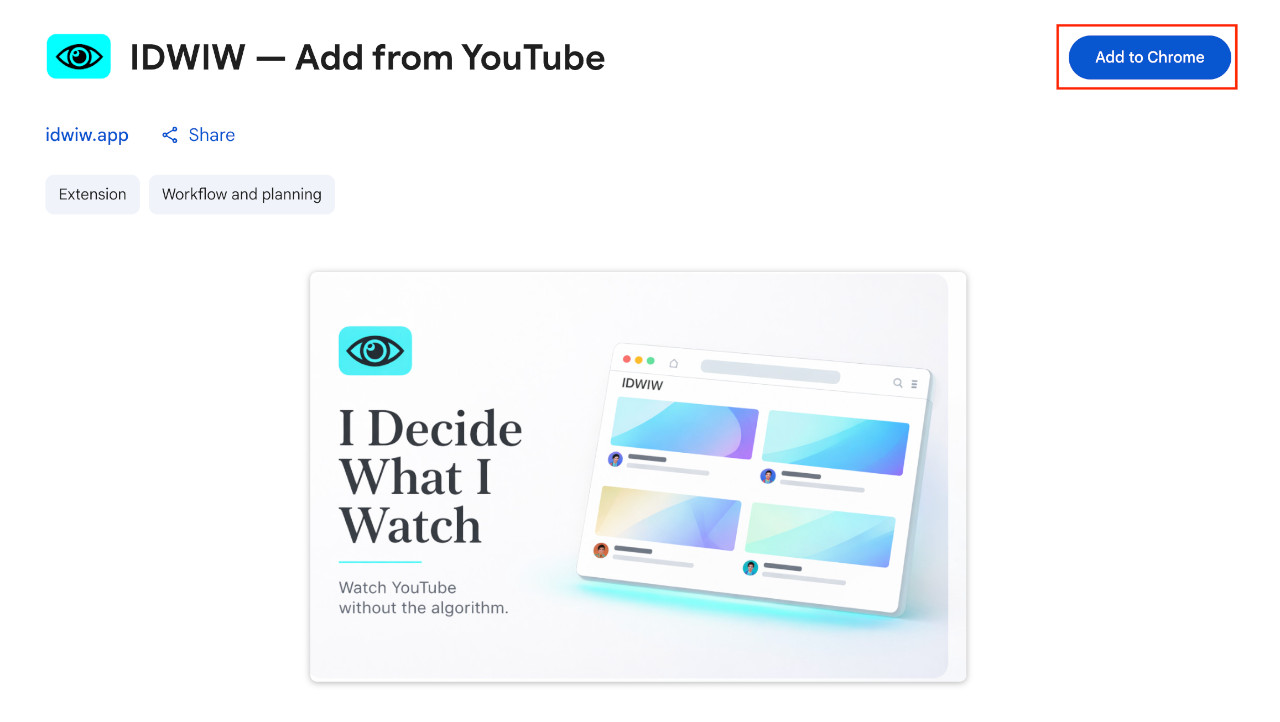
Add the extension to Chrome
Open the IDWIW listing on the Chrome Web Store and click Add to Chrome.
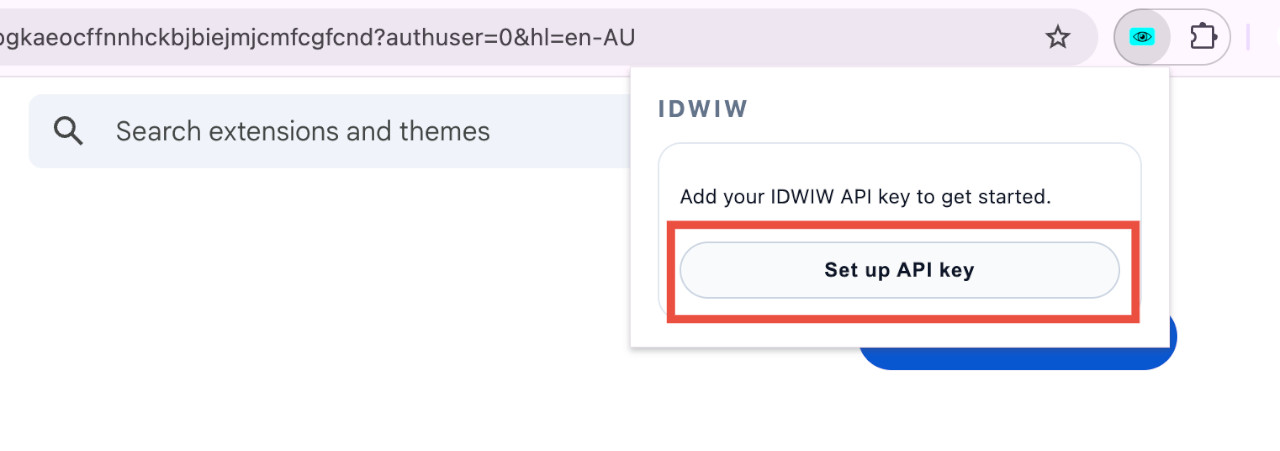
Open the API key setup
Click the IDWIW icon in your toolbar, then choose Set up API key. (If you don’t see the icon, click the puzzle-piece extensions button and pin IDWIW.)
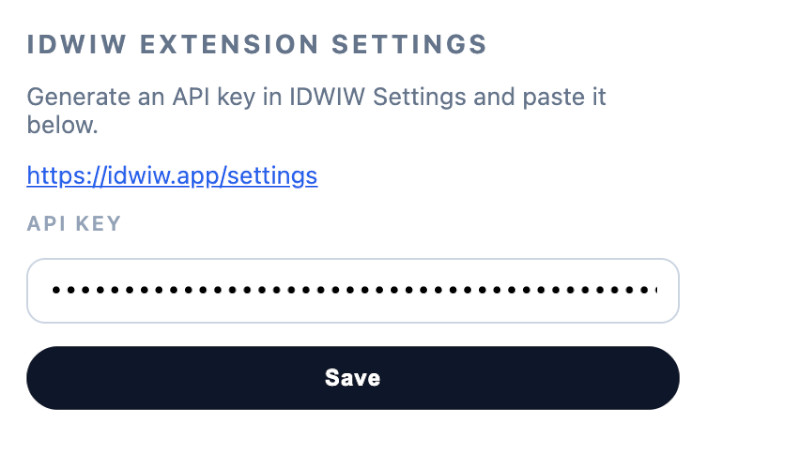
Generate and copy your API key
Head to your IDWIW settings, generate an API key, and copy it.
Paste the key and save
Back in the extension’s settings, paste your API key into the field and click Save.
You’re all set
That’s it. From now on, whenever you’re on YouTube, click the IDWIW icon to add the current video to your Watch List or subscribe its channel to your feed—all without breaking your focus.
Don’t have IDWIW yet?
Create a free account first, then come back and connect the extension.